
In short: In the Active dates card, set the Start date and Start time. Tick Set end date to choose when it stops. Times use your store's time zone.
Set it up
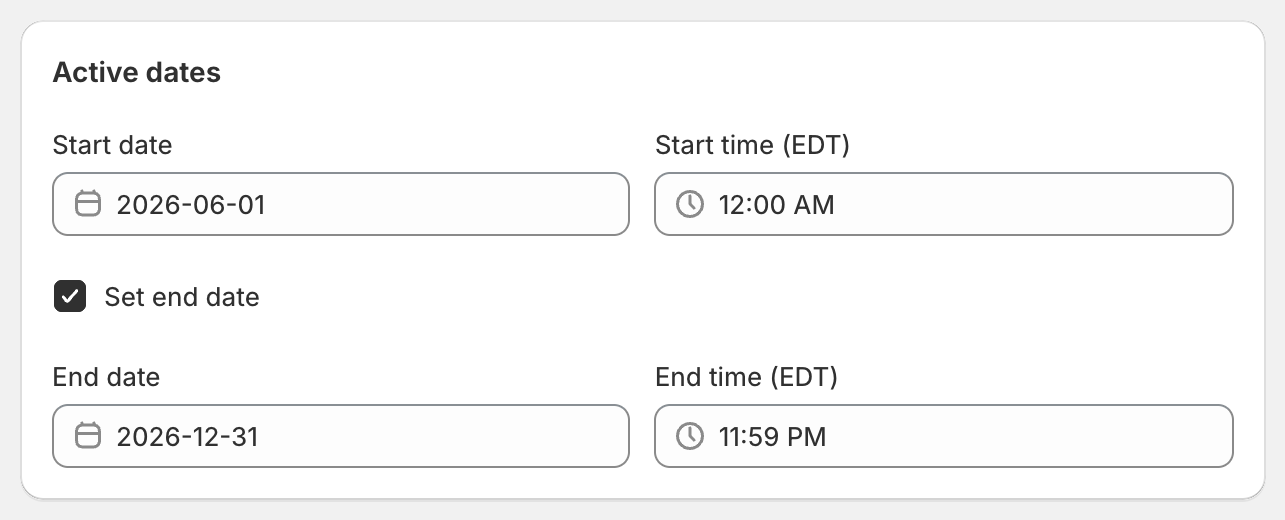
In Active dates, choose a Start date and Start time. New discounts start straight away unless you change this.
To stop the discount automatically, tick Set end date and choose an End date and End time.
Save the discount.
Status
The status follows the dates, on the OneCode home page and in the edit page summary:
Scheduled: the start date is in the future.
Active: it has started and hasn't ended.
Expired: the end date has passed.
Deactivating a discount in Shopify's Discounts page sets its end date to the moment you deactivate it, so it shows as Expired in OneCode: Stackable Discounts, and Active dates shows that end date.
Pause a discount
OneCode has no on/off switch. To stop a discount early, edit it, tick Set end date and set the end to now. To bring it back, clear the end date or move it later. You can also deactivate it from Shopify's Discounts page, and reactivate it there later.
Good to know
Times are in your store's time zone, shown in the label, for example Start time (EDT). Change your time zone in Shopify's Settings > General.
With no end date, the discount runs until you change it or delete it.