
In short: Open OneCode: Stackable Discounts, click Create discount, choose a code or automatic discount, add one or more discount types, set any conditions, then click Save discount.
This guide creates a code called SUMMER25 that gives 20% off the Summer Collection plus free shipping. It takes about two minutes.
Steps
In your Shopify admin, open Apps then OneCode Discounts.
Click Create discount at the top right.
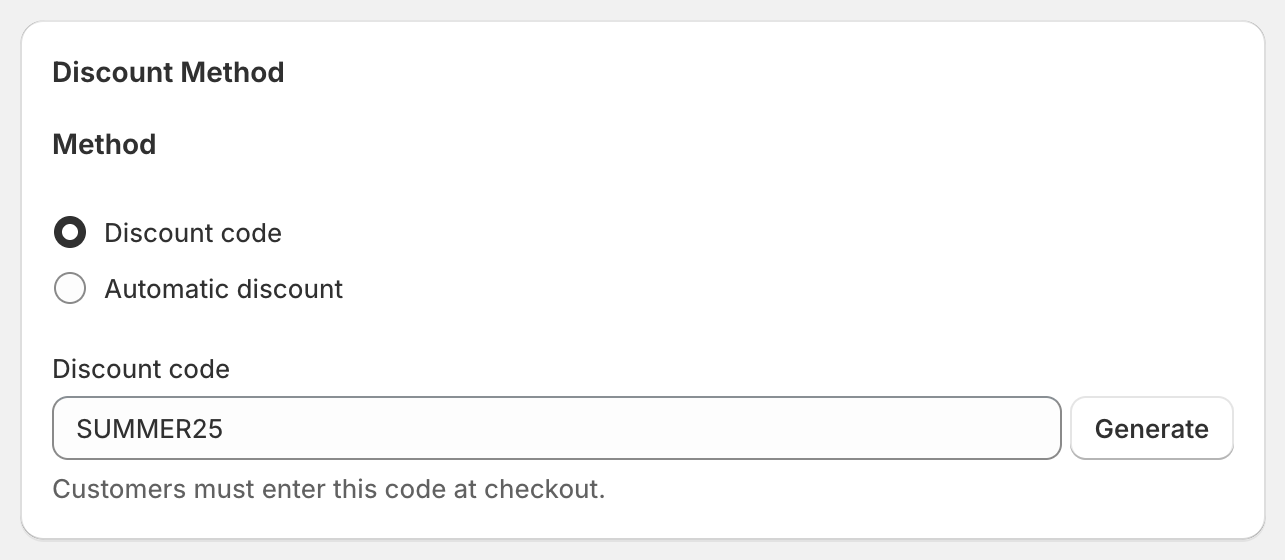
Under Discount Method, keep Discount code selected and type
SUMMER25in the Discount code field. Or click Generate for a random code. If you want the discount to apply without a code, choose Automatic discount and give it a Title instead. Customers see that title at checkout.
Under Discount Types, click Add Discount Type.
A new discount type starts as a Product Discount with Value Type set to Percentage. Type
20in Percentage.Set Target to Specific Collections, click Browse and pick the Summer Collection.
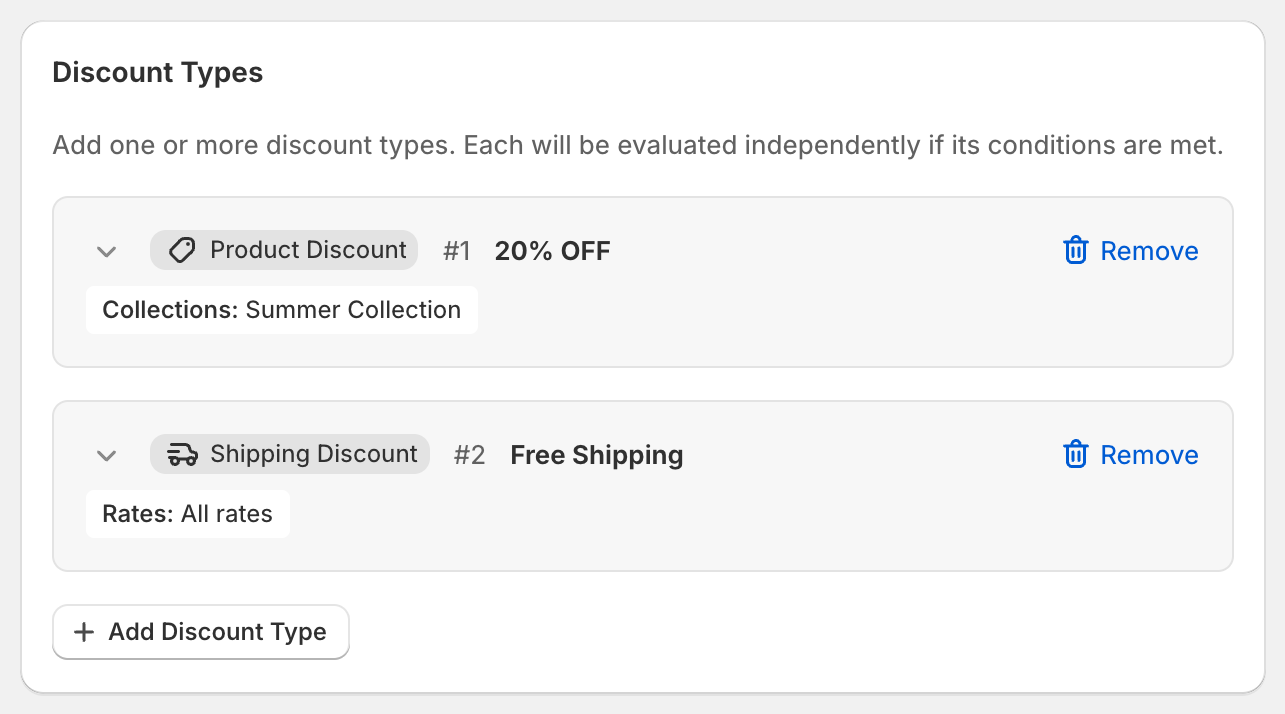
Click Add Discount Type again. Set Discount Type to Shipping Discount and keep Value Type as Free Shipping.
Leave Rate Selection on All Rates to make every shipping option free, or pick Cheapest Rate or Select Rates.
Click the arrow next to a discount type to fold it away. Folded, the two discount types look like this:
Optional: to add a rule such as "only when the cart is $100 or more", click Add Condition under Global Conditions. See Global conditions vs per-discount conditions.
Check Active dates. The discount starts straight away unless you change Start date. Tick Set end date if it should stop on a date.
Click Save discount at the bottom of the page (or Save in the bar at the top). You're taken back to the OneCode home page and the new code appears in the list.
Test it
Open your online store, add an item from the Summer Collection to the cart and go to checkout. Enter SUMMER25. You should see 20% off that item and free shipping. If it doesn't apply, see Why isn't my discount applying?.
Good to know
Nothing is applied until you add at least one discount type. Saving without one shows "Please add at least one discount type".
The summary on the right updates as you build, so you can check the discount before saving.
New discounts combine with your other product, order and shipping discounts by default. Change this in Combinations. See How OneCode discounts combine with your other discounts.
You can't switch a discount between code and automatic after saving. Create a new discount instead.
When you edit a discount later, there's no button at the bottom. Save your changes with Save in the bar at the top of the page.