
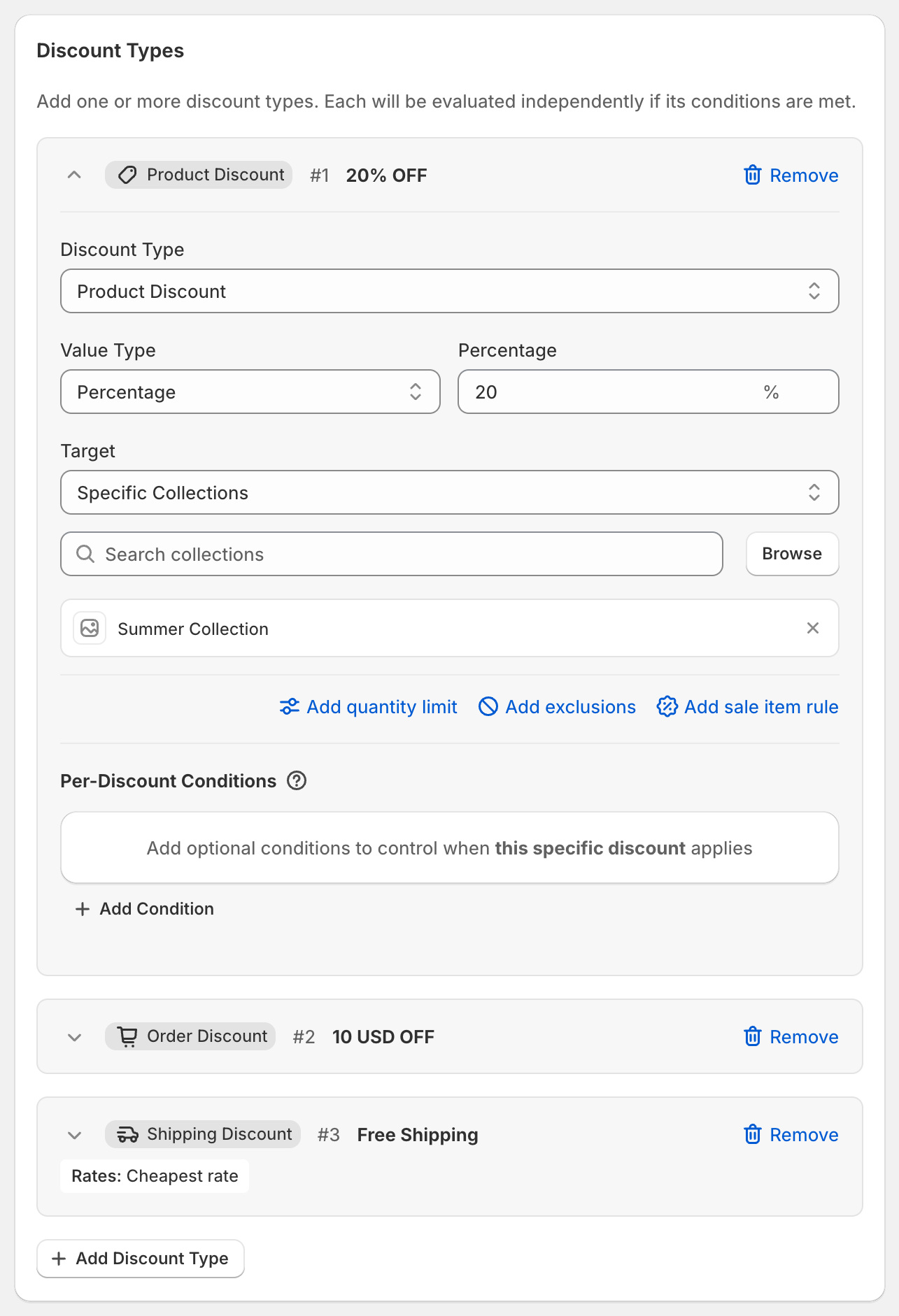
In short: A Product Discount takes a percentage or a fixed amount off each item it targets. Target All Products, Specific Products (down to individual variants) or Specific Collections.
Set one up
In the Discount Types card, click Add Discount Type. New discount types start as a Product Discount.
Choose a Value Type:
Percentage: for example
20takes 20% off each targeted item.Fixed Amount: for example
5takes $5 off each targeted item. Three of the same item get $15 off in total.
Choose a Target:
All Products: every product in the cart.
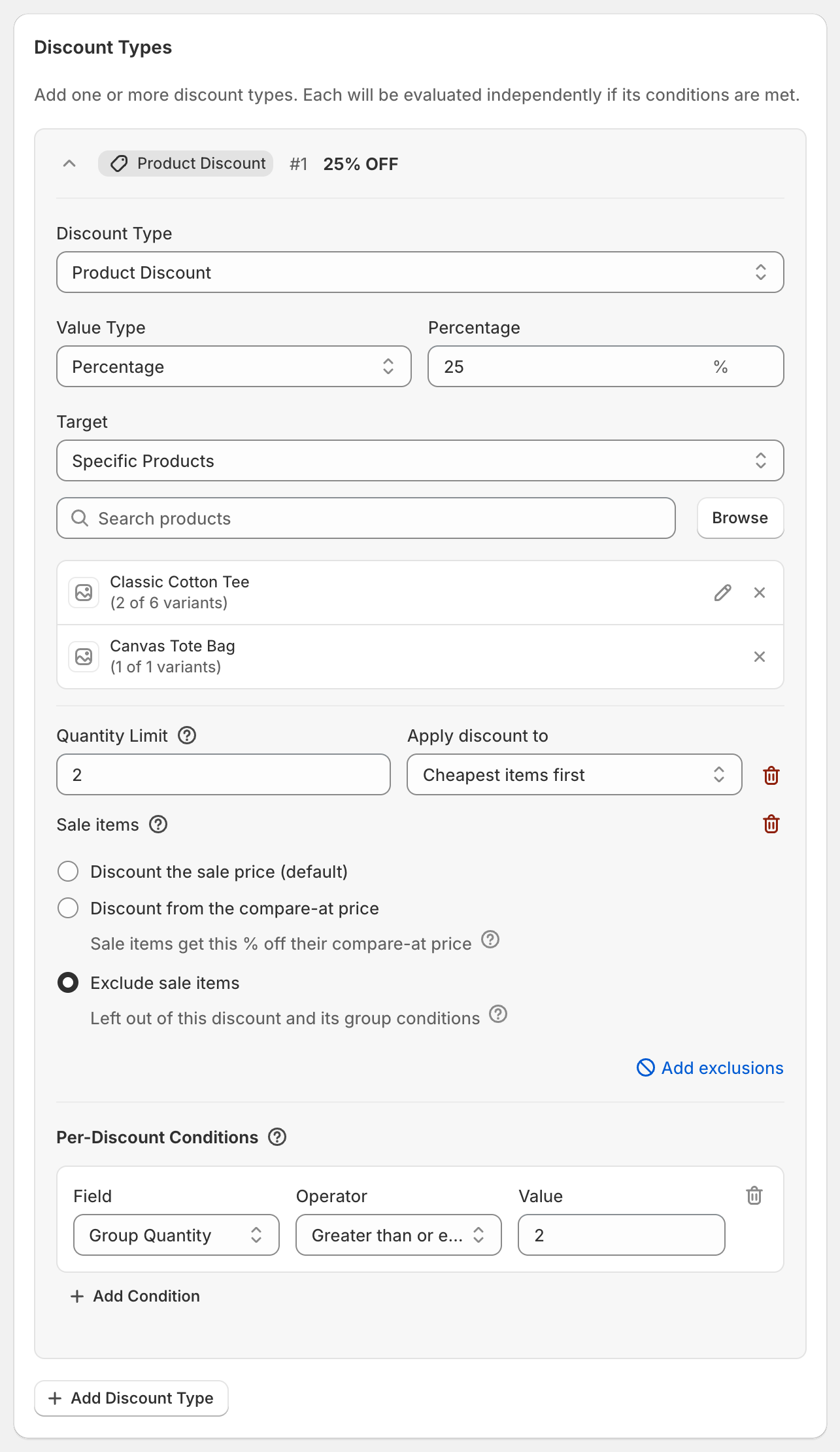
Specific Products: click Browse and pick products. To discount only some variants, click the pencil icon next to a product and choose the variants. The list shows how many are selected, for example "(2 of 6 variants)".
Specific Collections: click Browse and pick collections. Any product in those collections is discounted.
Optional: click Add quantity limit, Add exclusions or Add sale item rule. See Limit how many items get a discount and Sale items and subscription items.
Optional: add Per-Discount Conditions so this discount only applies in certain situations, for example when 2 or more targeted items are in the cart.
Worked example
25% off the Classic Cotton Tee and the Canvas Tote Bag. A customer buys one $40 tee and one $20 tote:
Tee: $40 − 25% = $30.
Tote: $20 − 25% = $15.
Total savings: $15.
Several product discounts in one code
You can add as many product discount types as you like, for example a different percentage for each collection. If an item qualifies for more than one, it gets the one that saves the most. See How OneCode decides which discounts apply.
Good to know
Percentage can't be more than 100.
A fixed amount is entered in your store's currency and converted for customers paying in other currencies. See Using OneCode with multiple currencies.
At checkout, customers see the discount code (or the title, for automatic discounts) next to each discounted item.
Collapse a discount type by clicking its header. The collapsed row shows a summary, for example "Collections: Summer Collection".
Like Shopify's own discounts, gift cards are only discounted when you pick the gift card product under Specific Products. All Products and Specific Collections skip them.
There's no way to leave out one specific product or collection from All Products. Instead, choose Specific Collections and pick every collection you do want discounted. To skip sale items or subscriptions, use a sale item rule or exclusions.
To give sale items the percentage off their compare-at price instead of their sale price, use a sale item rule.
A collection target uses the products in that collection at the moment of checkout. Products you add to the collection later are included automatically.